 13 slidesChalkboard lesson
Personal finance and investing
About this template
Budgeting, saving, debt and investing explained with green paper layers: ideal for financial literacy workshops, classes and advisors.
Slides included
The template has 14 widescreen 16:9 slides, already written in English around a realistic example on the topic so you can see how a finished deck looks. Replace the text with your own and delete the slides you do not need:
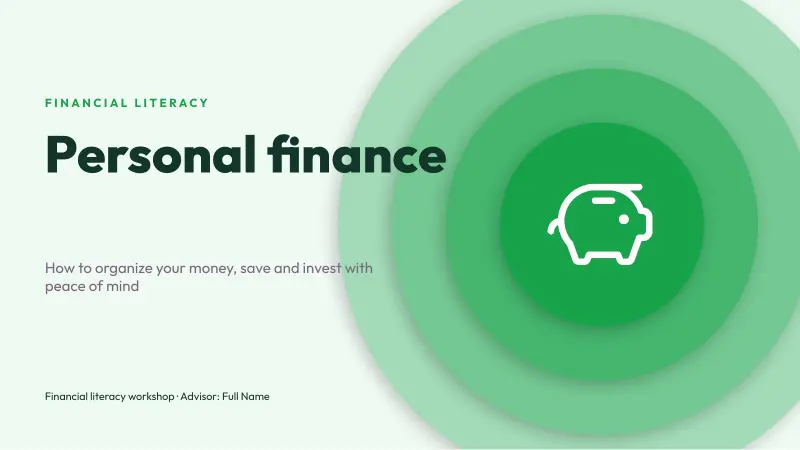
- Cover: “Personal finance”
- Agenda: “Contents”
- Section divider: “The budget”
- Introduction with text and image: “The 50/30/20 rule”
- Key idea cards: “Three steps to get started”
- Big numbers: “The power of compound interest”
- Editable chart: “Growth of a monthly saving”
- Timeline: “Your financial plan”
- Step-by-step process: “Strategy to get out of debt”
- Pyramid diagram: “Financial pyramid”
- Team: “Who supports you”
- Quote
- Closing slide: “Thank you”
- Resources: fonts, palette and instructions
Fonts, colors and editable elements
It uses Outfit ExtraBold and Outfit, free Google Fonts; download links are on the last slide. The main palette is #16A34A, #4ADE80, #BBF7D0, #F59E0B, #12372A and #EFFAF3 and it is stored in the file theme, so you can recolor the whole deck at once from Design → Variants → Colors in PowerPoint.
Everything is editable: text, shapes, icons and illustrations are native elements or images you can move, recolor or replace. The chart is a native PowerPoint chart: right-click → Edit Data and type your numbers. It also includes ready-to-fill slides for pyramid diagram.
How to edit this template
-
In PowerPoint
Open the .pptx and click into any text to replace it. To change colors for the whole deck go to Design > Variants > Colors.
-
In Google Slides
Upload the file to Google Drive and open it with Google Slides, or use File > Import slides inside an existing presentation.
-
In Canva
Choose Create a design > Import file and pick the .pptx. Each slide becomes an editable Canva page.
-
Images and charts
Right-click a picture and choose Change picture to keep its size and crop. Right-click a chart and choose Edit data to type your own numbers.
Frequently asked questions
Can I use this template in Google Slides?
Yes. Upload the .pptx file to Google Drive and open it with Google Slides. Outfit ExtraBold and Outfit are already available there; install them on your computer if you use PowerPoint.
How do I change the colors of the whole deck?
The colors live in the theme. In PowerPoint go to Design → Variants → Colors and pick or create a palette; every slide updates at once.
Is it free for commercial use?
Yes. You can use it for personal, school and work presentations with no attribution. You may not resell it or share the file as a download on another site.
What does Personal finance and investing include?
Personal finance and investing is a free editable .pptx file: 14 slides, 16:9 format, 186 KB. Text, colors, images and charts can all be changed.
Can I edit Personal finance and investing in Canva?
Yes. In Canva choose Create a design > Import file and select the .pptx. Every slide becomes an editable page.